How to Update Apps on Samsung Smart TV: Easy Fix in 5 Minutes (2026 Guide)

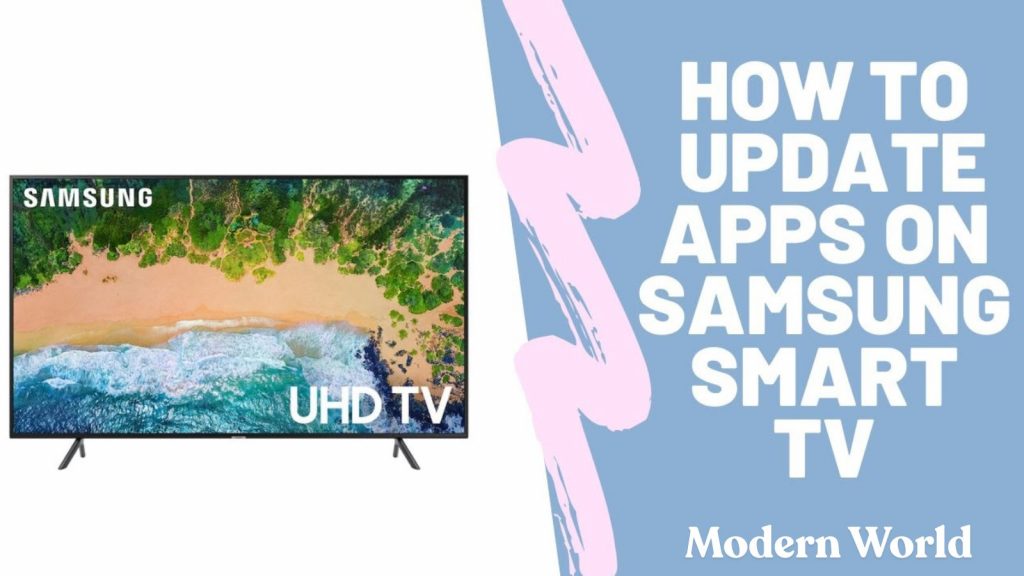
How to Update Apps on Samsung Smart TV is one of the most common questions Samsung users ask when their favorite apps suddenly stop working. Nothing is more frustrating than turning on your TV to watch Netflix or YouTube, only to find that an app keeps crashing, won’t open, or shows unexpected errors.
Thank you for reading this post, don't forget to subscribe!In many cases, the issue isn’t your internet connection at all. The app simply needs an update.
Updating apps on your Samsung Smart TV can fix bugs, improve performance, add new features, and restore compatibility with streaming services. This guide covers everything you need to know, including manual updates, automatic updates, troubleshooting tips, and solutions if your Samsung TV apps won’t update.
Why Updating Samsung TV Apps Is Important
Many people ignore app updates until something stops working. However, updates play a major role in keeping your Smart TV running smoothly.
Updating your apps can:
- Fix app crashes and freezing issues
- Improve streaming quality and performance
- Add new features and interface improvements
- Improve security and privacy
- Ensure compatibility with streaming services
For example, streaming platforms like Netflix and Disney+ regularly discontinue support for older app versions. If your app hasn’t been updated in a long time, it may suddenly stop working.
How to Update Apps on Samsung Smart TV Automatically
The easiest way to keep your apps updated is to enable automatic updates.
Steps to Turn On Auto Update
- Press the Home button on your Samsung remote.
- Navigate to Apps.
- Select the Settings icon in the top-right corner.
- Find Auto Update.
- Turn it On.
Once enabled, your TV will automatically download and install app updates whenever they become available.
Pro Tip
Many Samsung TV owners assume Auto Update is enabled by default. In reality, it may be turned off after a factory reset or on certain TV models.
How to Manually Update Apps on Samsung Smart TV
If an app is still not working properly, you may need to manually update it.
Follow These Steps
- Press the Home button.
- Open Apps.
- Select Settings.
- Scroll to the app you want to update.
- If an update is available, select Update.
If you don’t see an Update option, the app is already running the latest version.
How to Update Samsung TV Software
Many users focus only on app updates and overlook the TV’s software.
This is a mistake because outdated firmware can prevent apps from updating or functioning correctly.
Steps to Update Samsung TV Software
- Press the Home button.
- Go to Settings → Support → Software Update.
- Select Update Now.
- Wait for the installation to complete.
Why This Matters
Some app updates require newer firmware versions. If your TV software is outdated, certain apps may refuse to install or open.
Why Won’t My Samsung TV Apps Update?
If updates fail, one of the following issues is usually responsible.
1. Poor Internet Connection
A weak Wi-Fi signal can interrupt downloads.
Fix:
- Restart your router.
- Move the router closer to the TV.
- Connect using an Ethernet cable if possible.
2. Samsung Servers Are Temporarily Unavailable
Sometimes the issue is on Samsung’s side.
If multiple apps are failing to update, wait a while and try again later.
3. Outdated TV Firmware
Older firmware versions may not support newer app updates.
Always update your TV software before troubleshooting apps.
4. Insufficient Storage Space
Samsung Smart TVs have limited storage.
If your storage is full, app updates may fail.
Fix: Delete apps you no longer use. Unused games and streaming services often consume valuable space.
5. Samsung Account Problems
Your Samsung account may occasionally experience syncing issues.
Fix:
- Sign out of your Samsung account.
- Restart the TV.
- Sign back in.
This simple solution often resolves update problems.
Common Mistakes Users Make
| Mistake | What Happens |
|---|---|
| Only updating apps and ignoring firmware | Apps may still malfunction |
| Keeping Auto Update disabled | Apps eventually become outdated |
| Using unstable Wi-Fi | Downloads fail or become corrupted |
| Assuming an app is broken | It may simply need an update |
| Never deleting unused apps | Storage fills up and updates fail |
Insider Insight Most Websites Miss
Many Samsung TV issues that appear to be app problems are actually firmware compatibility issues.
For example, Netflix may suddenly stop working even though the app itself is fully updated.
The real issue could be that the TV’s operating system is too old to support the latest version of Netflix.
This is why updating both the apps and the TV software is essential.
How to Update Apps on Older Samsung Smart TVs
Older Samsung TVs may have slightly different menus.
Try following this path:
Smart Hub → Featured → App Settings
Keep in mind that some older Samsung TVs no longer receive app updates.
If a particular streaming app has disappeared or stopped working permanently, your TV model may no longer meet the app’s minimum requirements.
What to Do If the Samsung App Store Is Missing
If you can’t find the App Store, try the following solutions.
Restart the TV
Turn off the TV, unplug it for 60 seconds, and then turn it back on.
Update TV Software
Outdated firmware can cause Smart Hub issues.
Reset Smart Hub
Go to:
Settings → Support → Device Care → Self Diagnosis → Reset Smart Hub
After resetting, sign back into your Samsung account.
How to Fix Popular Streaming Apps
Netflix Not Working on Samsung TV
Try these steps:
- Update Netflix
- Update TV software
- Restart the TV
- Reinstall Netflix
YouTube Keeps Crashing
Try the following:
- Restart the app
- Restart the TV
- Check your internet speed
- Update the app and firmware
Disney+ Is Missing
Disney+ requires certain software versions.
Some older Samsung TV models may not support Disney+ anymore.
Common Myths About Samsung TV App Updates
Myth #1: Samsung TVs Update Apps Automatically
Not always. Auto Update may be disabled depending on your settings.
Myth #2: Reinstalling Apps Fixes Everything
Sometimes the problem is outdated firmware rather than the app itself.
Myth #3: Every Samsung TV Supports New Apps Forever
Unfortunately, hardware limitations eventually prevent older TVs from supporting modern app versions.
Quick Troubleshooting Checklist
Before contacting Samsung support, try this checklist:
Restart the TV
Check your internet connection
Enable Auto Update
Update TV firmware
Delete unused apps
Reinstall problematic apps
Reset Smart Hub
These steps solve most Samsung Smart TV app issues.
Key Takeaways
- Updating apps keeps streaming services running smoothly.
- Enable automatic updates to avoid future problems.
- Always update Samsung TV software along with apps.
- Storage issues and internet problems frequently prevent updates.
- Older Samsung TVs may eventually lose support for certain apps.
Frequently Asked Questions
How do I manually update apps on my Samsung Smart TV?
Press the Home button, open Apps, select Settings, choose the app, and select Update if an update is available.
Do Samsung Smart TV apps update automatically?
Yes, but only if Auto Update is enabled in the Apps settings.
Why can’t I update apps on my Samsung TV?
Common causes include poor internet, outdated firmware, insufficient storage, or temporary Samsung server issues.
Why is Netflix not working on my Samsung Smart TV?
Netflix may require an app update or newer TV firmware. Updating both usually fixes the issue.
How do I refresh apps on Samsung Smart TV?
Restart the TV, reinstall the app, or reset Smart Hub if necessary.
Can older Samsung TVs still receive app updates?
Some older models can still receive updates, but very old TVs may no longer support newer app versions.
Why is the update option missing?
If the Update button doesn’t appear, the app is already updated or your TV no longer supports newer versions.
Final Thoughts
Learning how to update apps on Samsung Smart TV can save you a lot of frustration. Whether you’re dealing with apps that crash, buffering issues, or streaming services that suddenly stop working, keeping both your apps and TV software updated is one of the easiest ways to maintain smooth performance.
Enable automatic updates if possible, regularly check for firmware updates, and use the troubleshooting tips in this guide whenever an app starts acting up.
A few minutes of maintenance today can prevent hours of streaming problems later.